Install the WordPress plugin
Paste one site key and every post gets the right survey, with no template edits.
Step 1:Install and activate the plugin
In WordPress, go to Plugins → Add New Plugin and search for Asklet. Click Install Now, then Activate.
Nothing shows on your site until you add a site key, and a notice on the Plugins screen reminds you to.
Step 2:Copy your site key
In Asklet, open the website and click Copy website snippet at the top. At the bottom of the window, copy the Site key: a code like 1a2b3c4d-5e6f-4a7b-8c9d-0e1f2a3b4c5d.
Tip: Copied the whole snippet or the survey link instead? Paste it anyway: the plugin keeps only the key.
Step 3:Paste it in WordPress
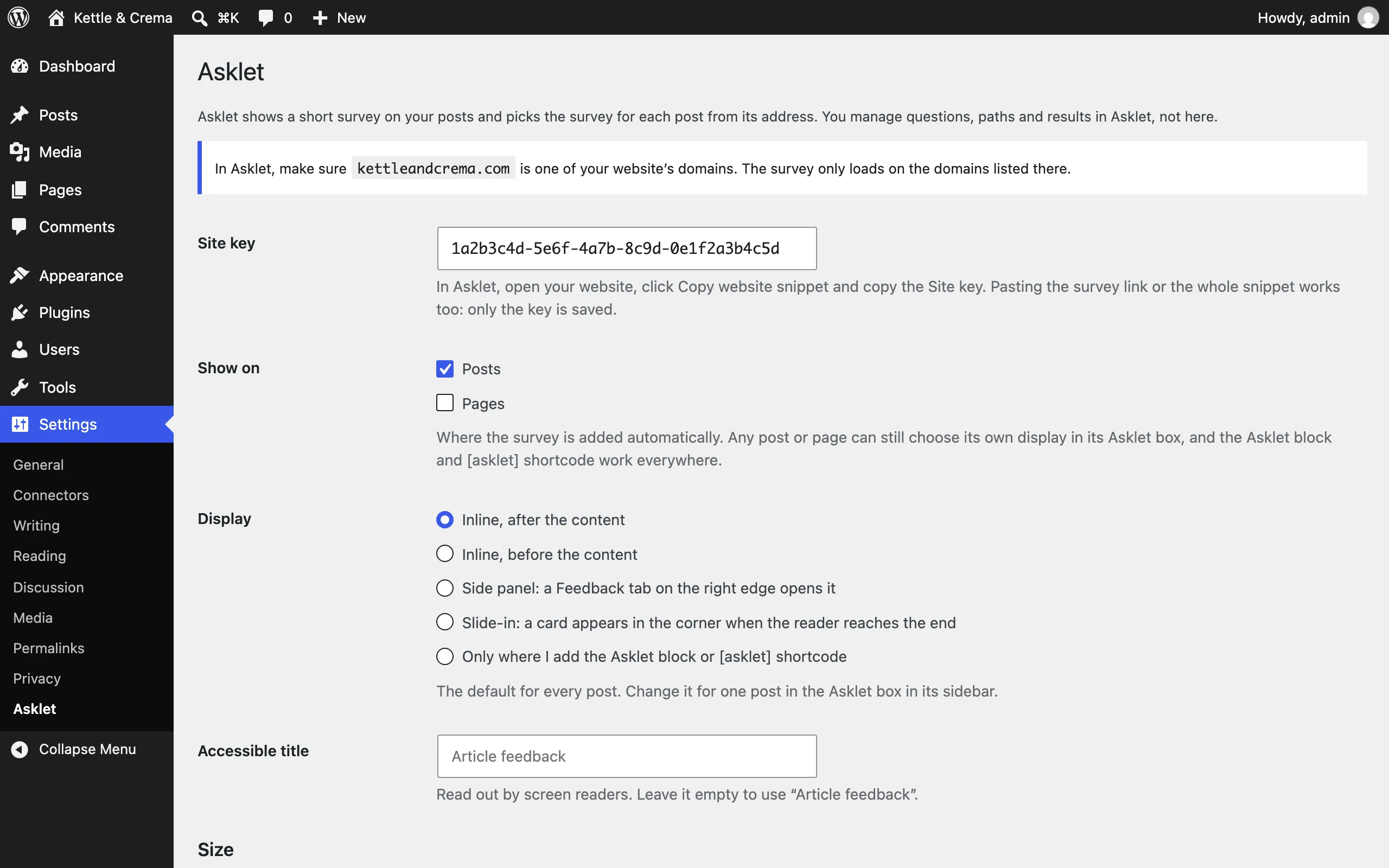
Go to Settings → Asklet and paste the key into Site key.
The notice at the top shows your WordPress domain. It must be the website's root domain or one of its subdomains in Asklet, including www, or the survey won't load.
Step 4:Choose where and how it appears
Under Show on, tick the post types that get the survey: posts, pages or any public custom post type. Under Display, choose how it appears on them, then click Save Changes:
- Inline, after the content: at the end of the article, where readers can judge it. The usual choice.
- Inline, before the content: above the article.
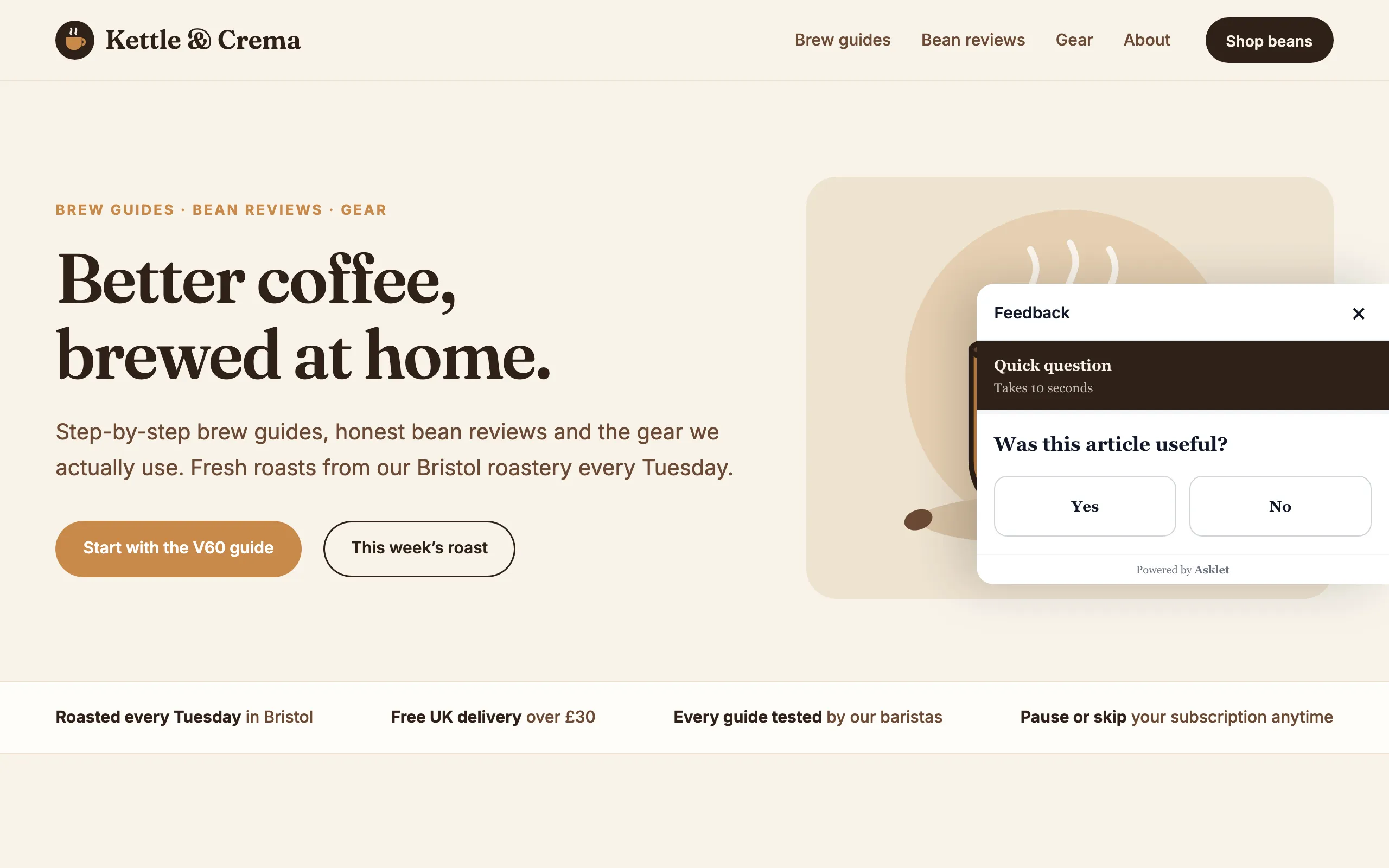
- Side panel: a Feedback tab on the right edge opens a panel. Set its Tab label and Tab colour under Side panel.
- Slide-in: a card slides into the corner once the reader reaches the end of the post, never before.
- Only where I add the Asklet block or [asklet] shortcode: nothing is added automatically.
Step 5:Give one post its own display
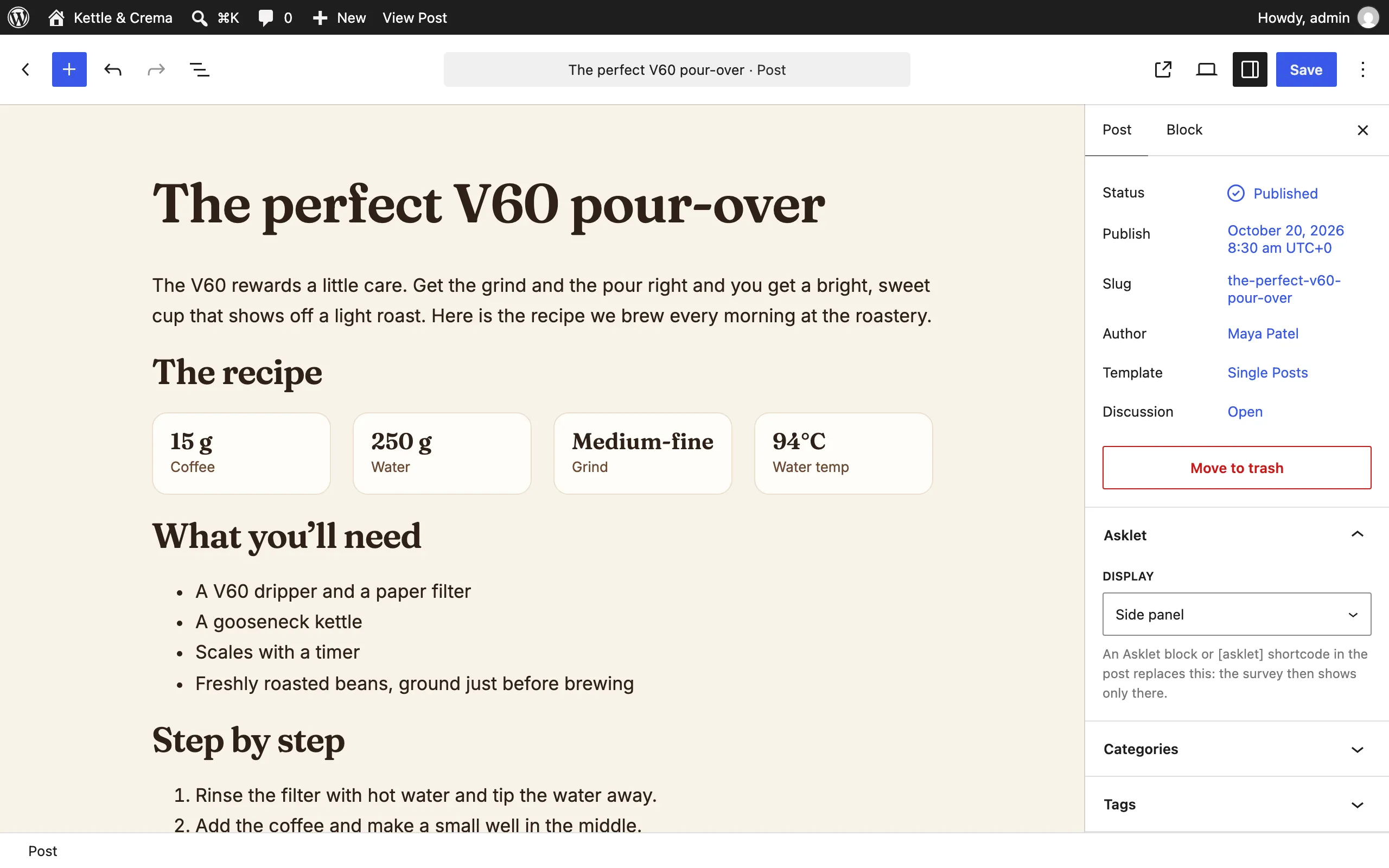
Open the post in the editor. In the Post tab of the sidebar, open the Asklet panel and pick a Display: the site default, inline after or before, side panel, slide-in, or Hidden on this post. Then save the post.
It works on post types you didn't tick under Show on, so you can add a side panel to a single page. In the classic editor, the same choice is in the Asklet box beside the post.
Step 6:Place it yourself with the block or shortcode
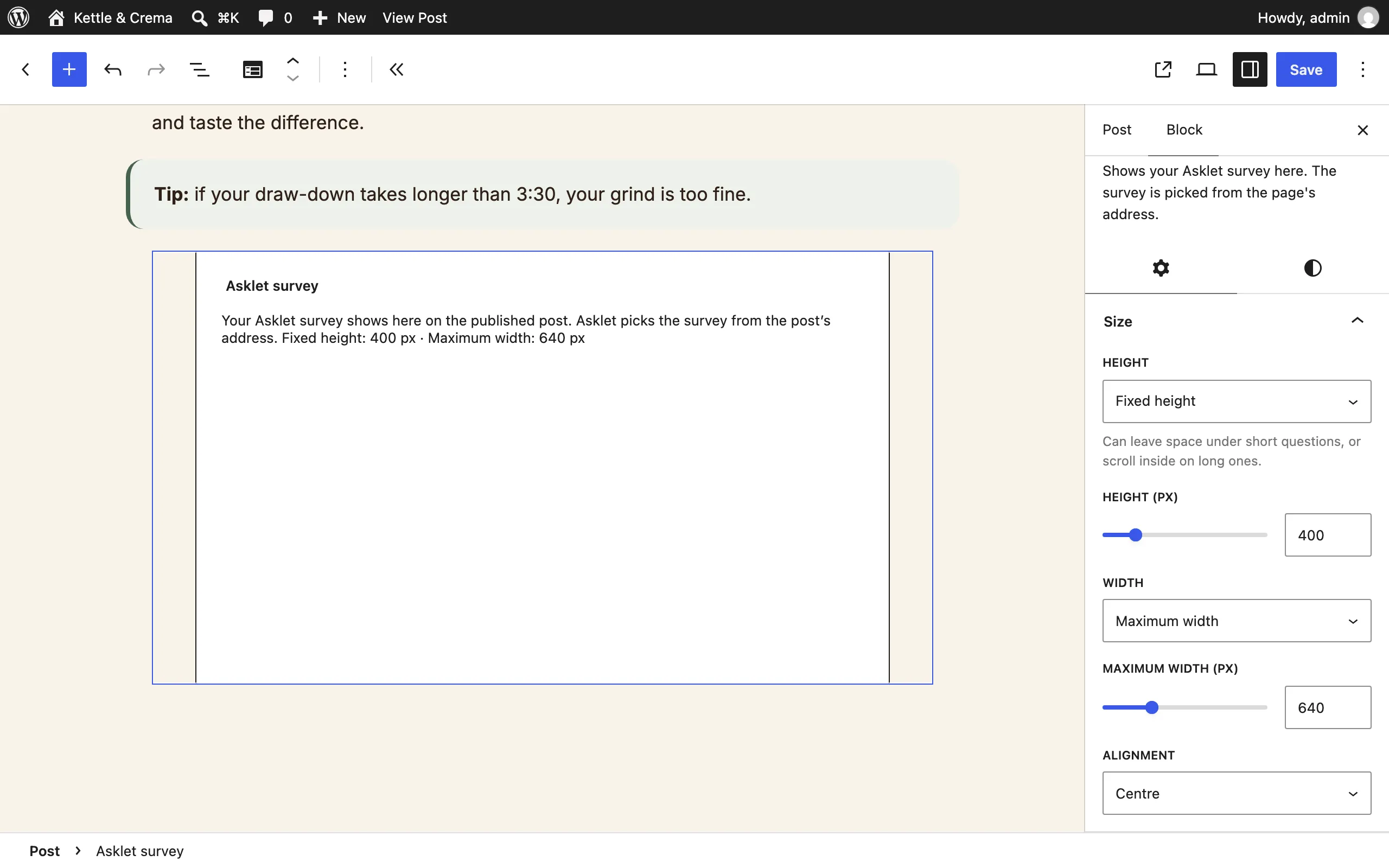
In the block editor, add the Asklet survey block where the survey should go. In the classic editor, a widget area or a page builder, use the shortcode [asklet].
A post that has the block or the shortcode never gets a second, automatic survey. The editor shows a placeholder: the survey itself appears on the published post.
Step 7:Adjust the size
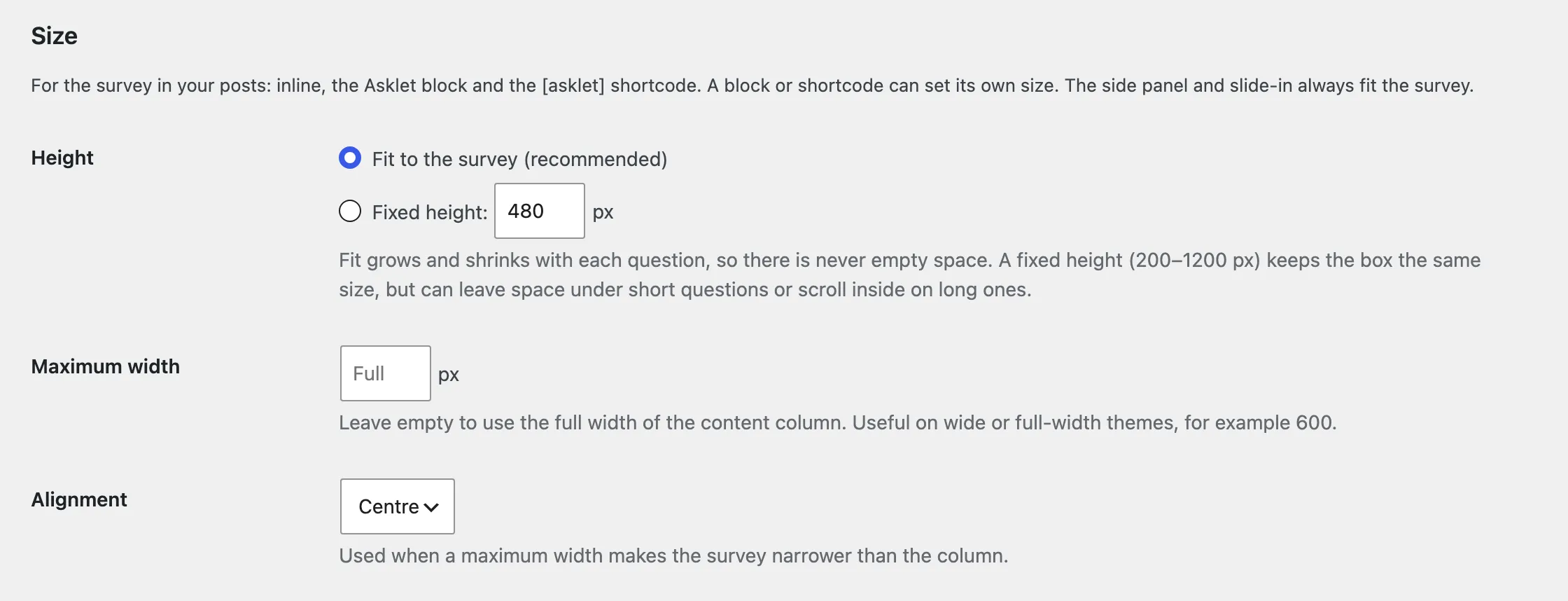
By default the survey fits its questions, so there is no empty box, and fills the width of your content column. Under Settings → Asklet → Size you can set a Fixed height (200–1200 px) instead, and a Maximum width with centre or left Alignment, which helps on wide themes.
One block can override this in its sidebar's Size panel, and one shortcode with its attributes:
[asklet height="400" width="600" align="left"] Tip: height takes pixels or fit, width pixels or full, and align left or center. The side panel and slide-in always fit the survey.
Step 8:Check it on a published post
Open a published post on your site and answer the survey. To keep your own answers out of the results, add the post in the Pages tab first: new pages start in test mode.
Common questions
The survey doesn't appear on my posts. What should I check?
Check that Settings → Asklet has a site key, that the post type is ticked under Show on, and that the post's own Display isn't Hidden on this post. Then clear your caching plugin's page cache.
The survey shows an empty box. Why?
The domain in the address bar isn't one of the website's domains in Asklet. Add it under the website's Settings, including www if your site uses it, and check that the website and its default survey are active.
Does it work with caching plugins and multisite?
Yes. The plugin outputs the same thing for every visitor, so cached pages are fine. On a multisite network, each site has its own settings and site key.
What happens if I deactivate or delete the plugin?
Deactivating it removes the survey from your site. Deleting it also removes its settings and each post's display choice. Your answers stay in Asklet.