Invite your team and set roles
Bring colleagues in, and decide who can change things and who can only look.
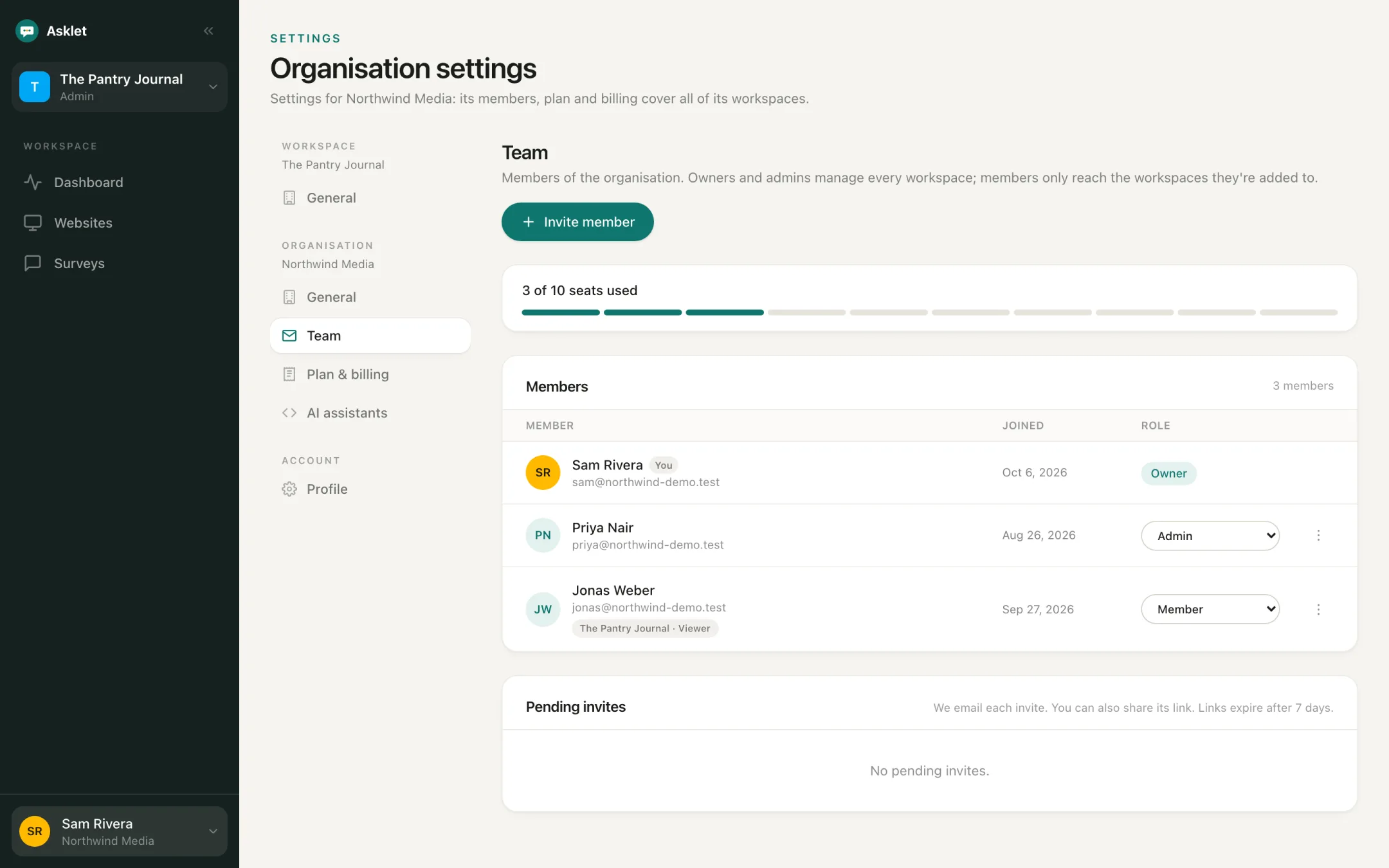
Step 1:Understand the roles
There are two levels: the organisation and the workspace.
- Owner (organisation): everything, including plan and billing.
- Admin (organisation): manages every workspace, the team and invites.
- Member (organisation): only reaches the workspaces they are added to.
- In a workspace, a member is either an Admin, who manages its websites and surveys, or a Viewer, who sees everything and changes nothing.
Step 2:Send an invite
Open the account menu at the bottom of the sidebar, then Team, and click Invite member. Enter their email and role. For a member, pick the workspace they should reach and their role in it.
Click Send invite. We email them a link, and you can copy the link to share it yourself.
Step 3:They accept
The person signs in, or signs up, with the invited email address and accepts. Invites expire after 7 days; revoke a pending one from the same page.
Step 4:Give a member access to more workspaces
Switch to the workspace, choose Workspace in the workspace menu at the top of the sidebar and use Add member under People with access. Remove access there too; they stay in the organisation.
Loading feedback…