Customise how the widget looks
Match the widget to your site: language, texts, colours, style and behaviour.
Where to find it
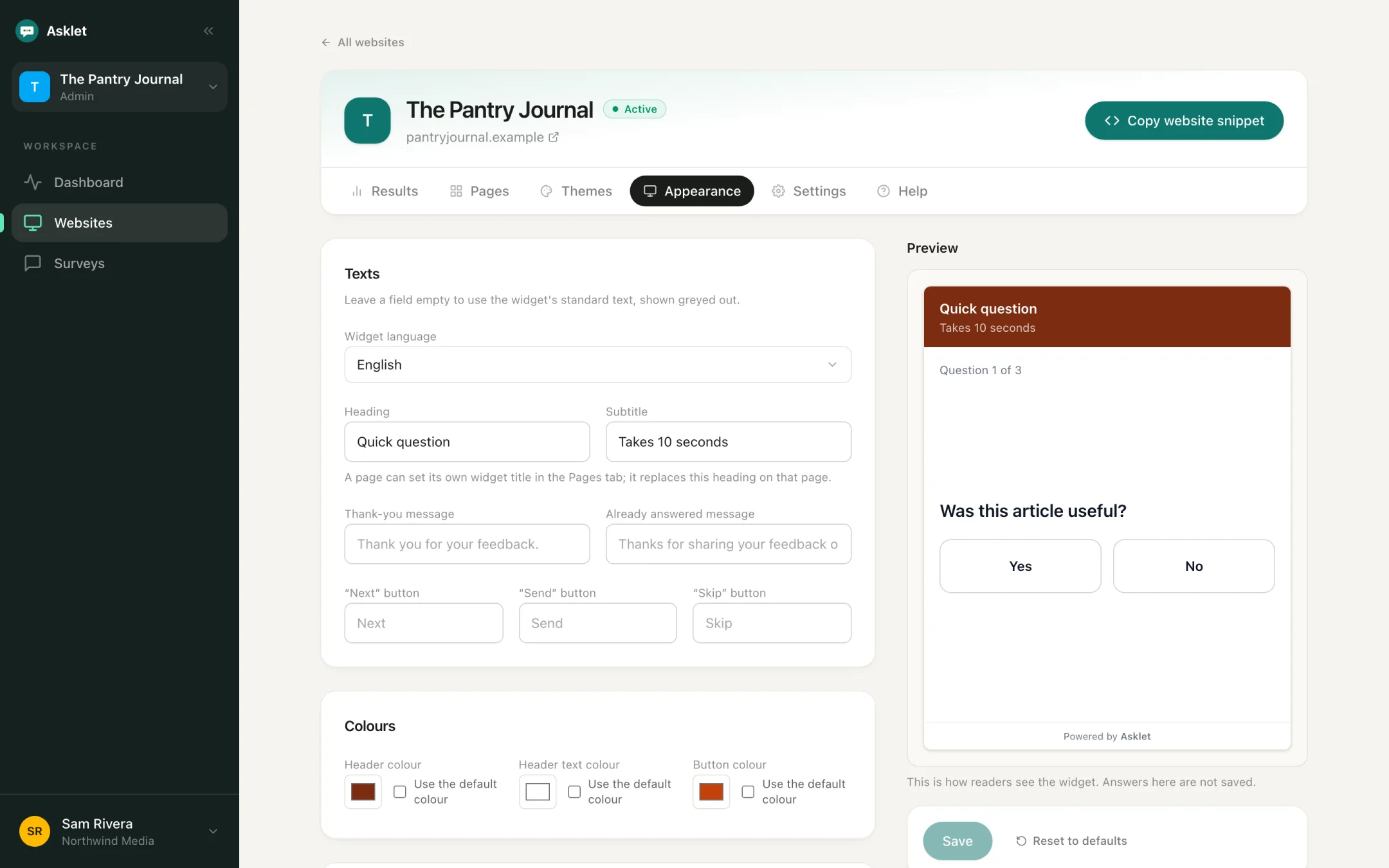
Open the website and go to the Appearance tab. A live preview next to the form shows every change. Click Save when you're done, or Reset to defaults to start over.
Language and texts
Choose the Widget language (English or Portuguese) for the standard texts. Then set your own Heading, Subtitle, button labels, Thank-you message and Already answered message. Leave a field empty to keep the standard text.
A page can set its own widget title in the Pages tab. It replaces the heading on that page.
Colours
Set the Header colour, Header text colour and Button colour to match your brand.
Style and typography
Pick a Solid or Minimal header, a light or dark background, sharp, rounded or pill corners, a font (system, serif, rounded or mono) and the question text size.
Behaviour
Choose how progress is shown (a bar, text or hidden). Turn on Let readers skip questions to let them skip any question after the first.