Pages and path patterns
Give a page, or a whole section, its own results and its own survey, with exact paths or patterns.
Step 1:Decide if you need pages
You don't have to add any. Without pages, the website's default survey shows everywhere and results are combined for the site, broken down by the paths readers answered on.
Add a page when you want to follow an article or section on its own, ask it different questions, give it a theme or a different widget title.
Step 2:Add a page
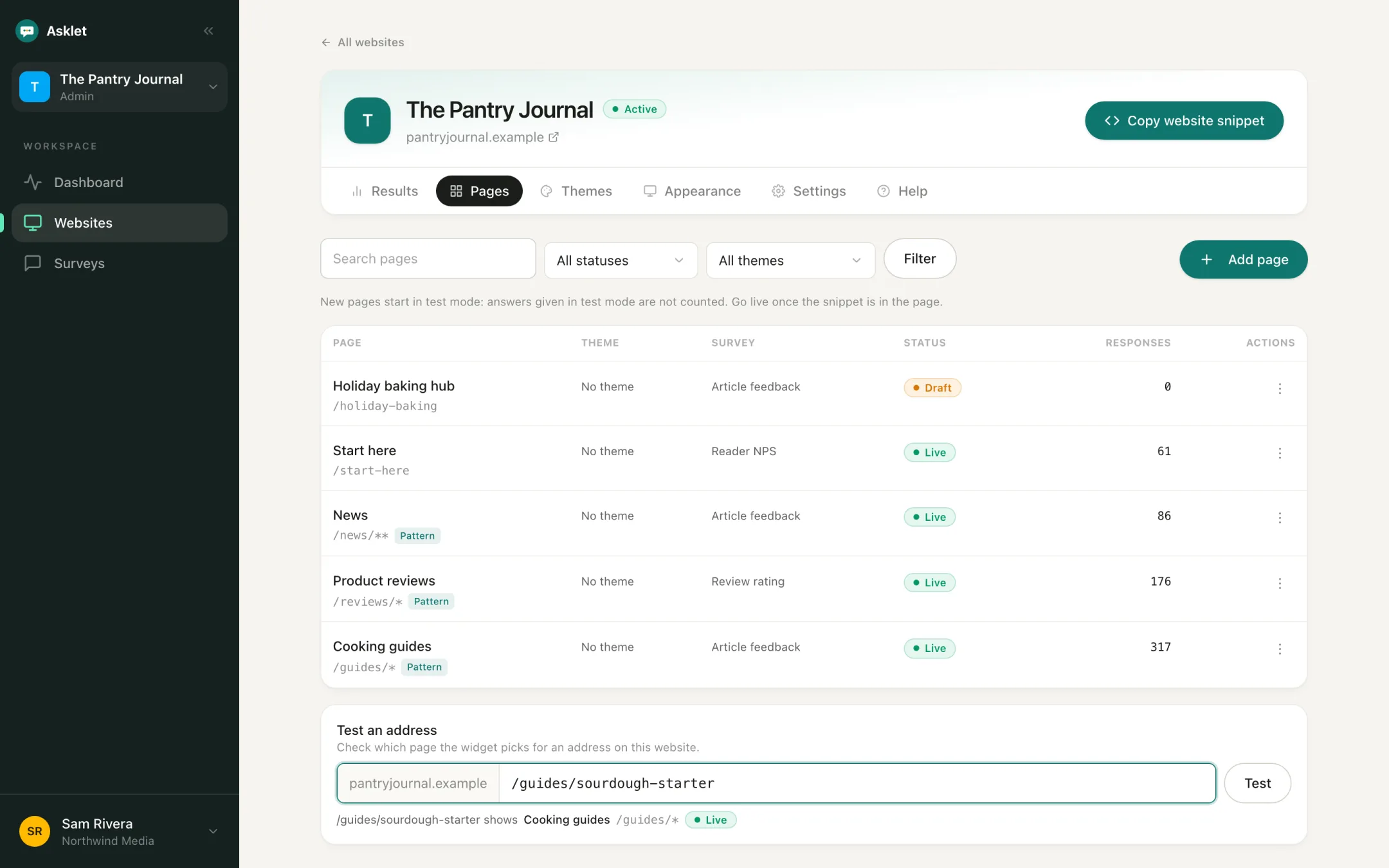
Open the website, go to the Pages tab and click Add page. Give it a Title, then paste the page's address or type its path, like /blog/how-to-start.
Pick a Survey (or keep the website's default), and optionally a Theme and a Widget title for this page only.
Step 3:Cover many pages with a pattern
Use * for one changing part of the path, and ** at the end for everything below a folder:
-
/blog/how-to-startmatches exactly this page. -
/posts/*/infomatches/posts/123/infoand/posts/abc/info. -
/posts/draft-*matches part of a segment, like/posts/draft-1. -
/blog/**matches/blogitself and everything under it.
Tip: Only the path counts. The domain, ?query and #anchor are ignored. If you paste an address with an id in it, the form suggests a pattern for you.
Step 4:Understand overlaps
Paths may overlap, for example /blog/** for the whole blog and /blog/tech/** for one section. When several pages match, the most specific one wins: an exact path first, then the pattern with more fixed parts. Anything unmatched uses the default survey.
While you type, the form tells you which pages share addresses with this one and which one readers will see there.
Step 5:Test an address
On the Pages tab, use Test an address: type a path like /blog/my-article and click Test to see which page, and so which survey, the widget will show there.
Step 6:Track a page you already have answers for
The website's Results tab lists Pages readers answered on. Click Track this page next to one to add it as a page in one step. Its earlier answers stay in the website's results.