Create a survey
Start from a template or a blank survey, add questions from the bank, preview it and activate it.
Step 1:Start a new survey
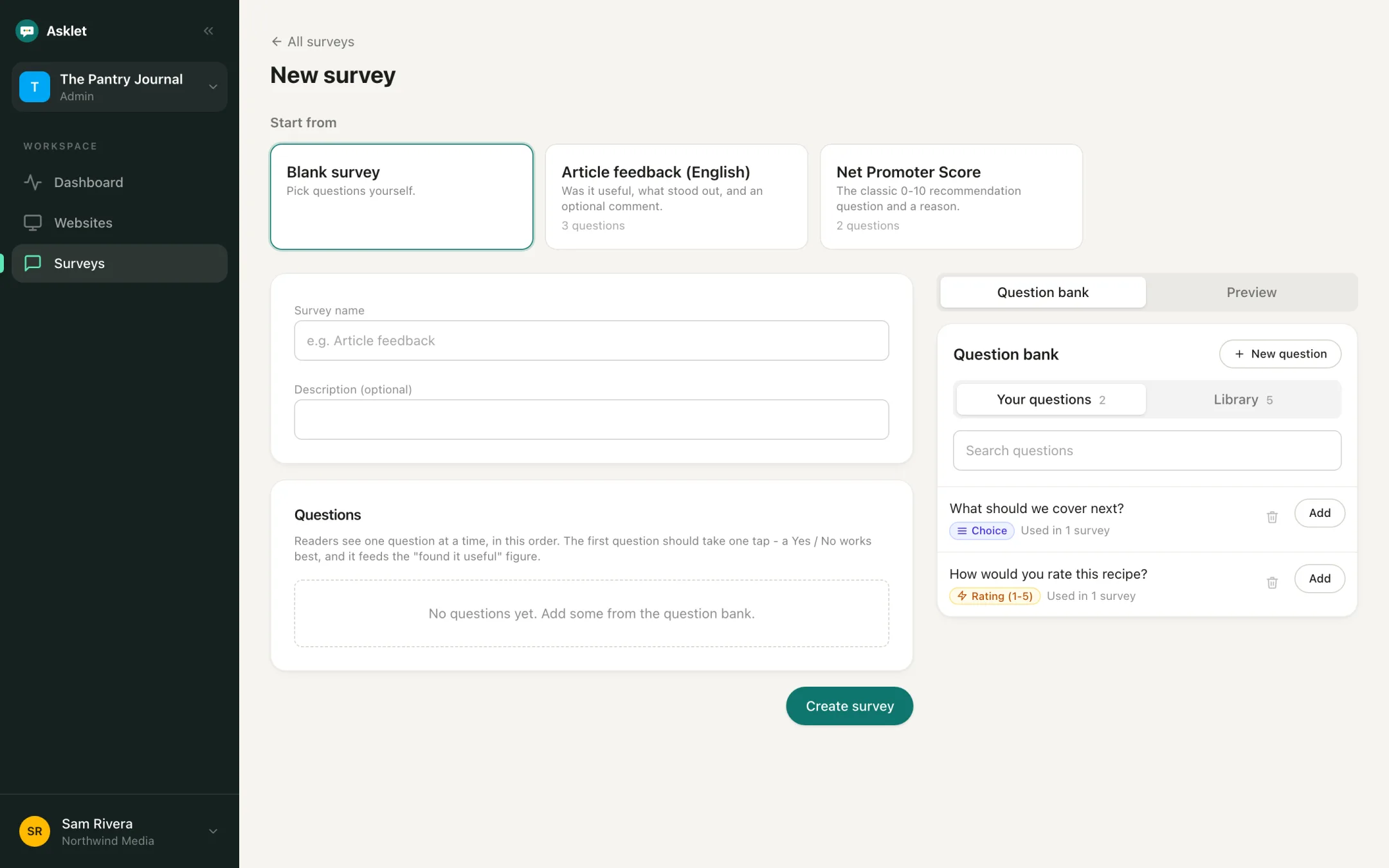
Go to Surveys and click New survey. Choose where to start: a Blank survey, or a template such as Article feedback or Net Promoter Score that comes with its questions already in place.
Step 2:Name it
Give the survey a name your team will recognise, like "Article feedback" or "Docs helpfulness". Readers never see the name. The description is optional.
Step 3:Add questions from the question bank
The right-hand column is the Question bank. Library holds ready-made questions; Your questions holds the ones your workspace has created. Search, then click Add on each question you want.
Can't find the right one? Click New question, pick a type, write it and click Add to survey. It's saved to the bank so other surveys can reuse it.
Step 4:Put the questions in order
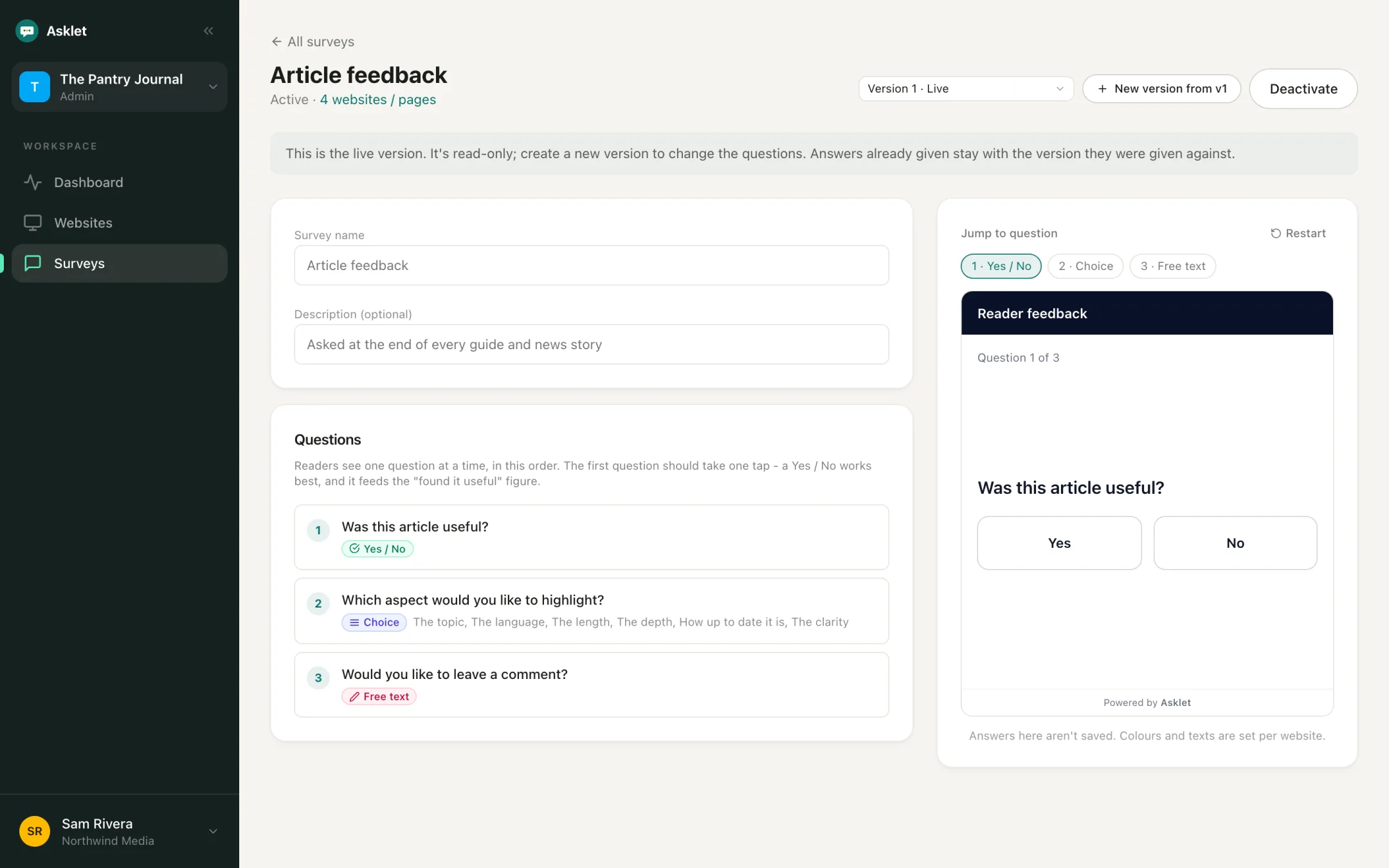
Readers see one question at a time, in the order of the list. Use the arrows to move a question up or down, and Remove to take it out.
Make the first question a one-tap Yes / No, such as "Was this article useful?". It gets the most answers, and it feeds the "found it useful" figure on your dashboard.
Tip: Keep surveys short. Two or three questions get far more complete answers than six.
Step 5:Preview it
Switch the right-hand column to Preview to try the real widget with your questions, exactly as readers will see it.
Step 6:Save and activate
Click Save survey. A new survey is a draft, which the widget can't show. Click Activate to make it available to your websites and pages.
Common questions
Can I use the same survey on several websites?
Yes. A survey belongs to the workspace, so any website or page in that workspace can use it.
Do readers have to answer every question?
The first question is always required. To let readers skip the rest, turn on Let readers skip questions in the website's Appearance tab.