WordPress reader feedback: the Asklet plugin
Add a "Was this article helpful?" survey to every WordPress post with the free Asklet plugin: inline, side panel or slide-in. No code, no cookies.
The plugin is in review for the WordPress.org directory, so it can't be installed from Plugins yet. Until it is listed, add the snippet by hand: see "Without the plugin" below.
The Asklet plugin adds your survey to every post, page or custom post type. Paste your site key, choose how the survey appears, and that's it: no template edits and no code.
Asklet decides which survey each post shows from its address, so you change questions in Asklet, not in WordPress. Answers are stored in Asklet, not in your WordPress database.
Steps
- 01
Install the plugin
In WordPress, go to Plugins → Add New Plugin, search for "Asklet", then click Install Now and Activate.
- 02
Copy your site key
In Asklet, open your website, click Copy website snippet and copy the Site key at the bottom of the window.
- 03
Paste it into WordPress
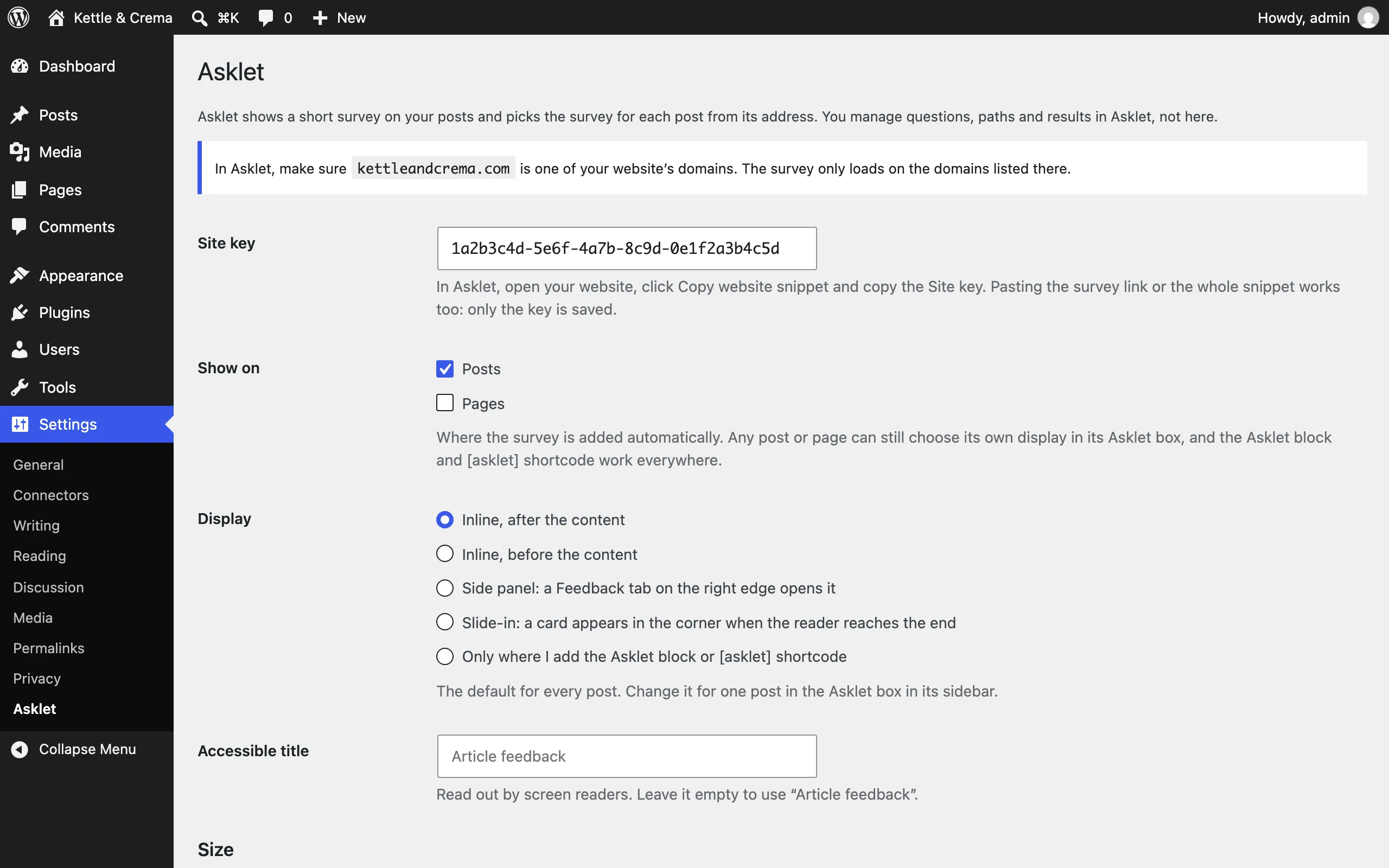
Go to Settings → Asklet, paste the key into Site key, tick the post types that get the survey, choose a display and save.
- 04
Check a published post
Open a published post on a domain you listed in Asklet and answer the survey. To keep your own test answers out of the results, add the post as a page first: new pages start in test mode.
- The plugin outputs the same iframe as the snippet, with referrerpolicy="unsafe-url", so Asklet knows which post the reader is on. If an optimisation plugin rewrites iframes, make sure it keeps that attribute.
- Remove any snippet or Custom HTML block you added by hand before, or those posts show the survey twice.
- On WordPress.com, installing plugins needs a plan that allows them. Self-hosted WordPress has no such limit.
Choose how the survey appears
Under Settings → Asklet, Show on sets the post types that get the survey: posts, pages or any public custom post type. Display sets how it appears on them:
- Inline, after the content: at the end of the article, where readers can judge it. The usual choice.
- Inline, before the content: above the article.
- Side panel: a Feedback tab on the right edge of the screen opens a panel. You choose the tab label and colour.
- Slide-in: a card slides into the corner once the reader reaches the end of the post, never before.
- Only where you add the Asklet block or [asklet] shortcode: nothing is added automatically.
Give one post its own display
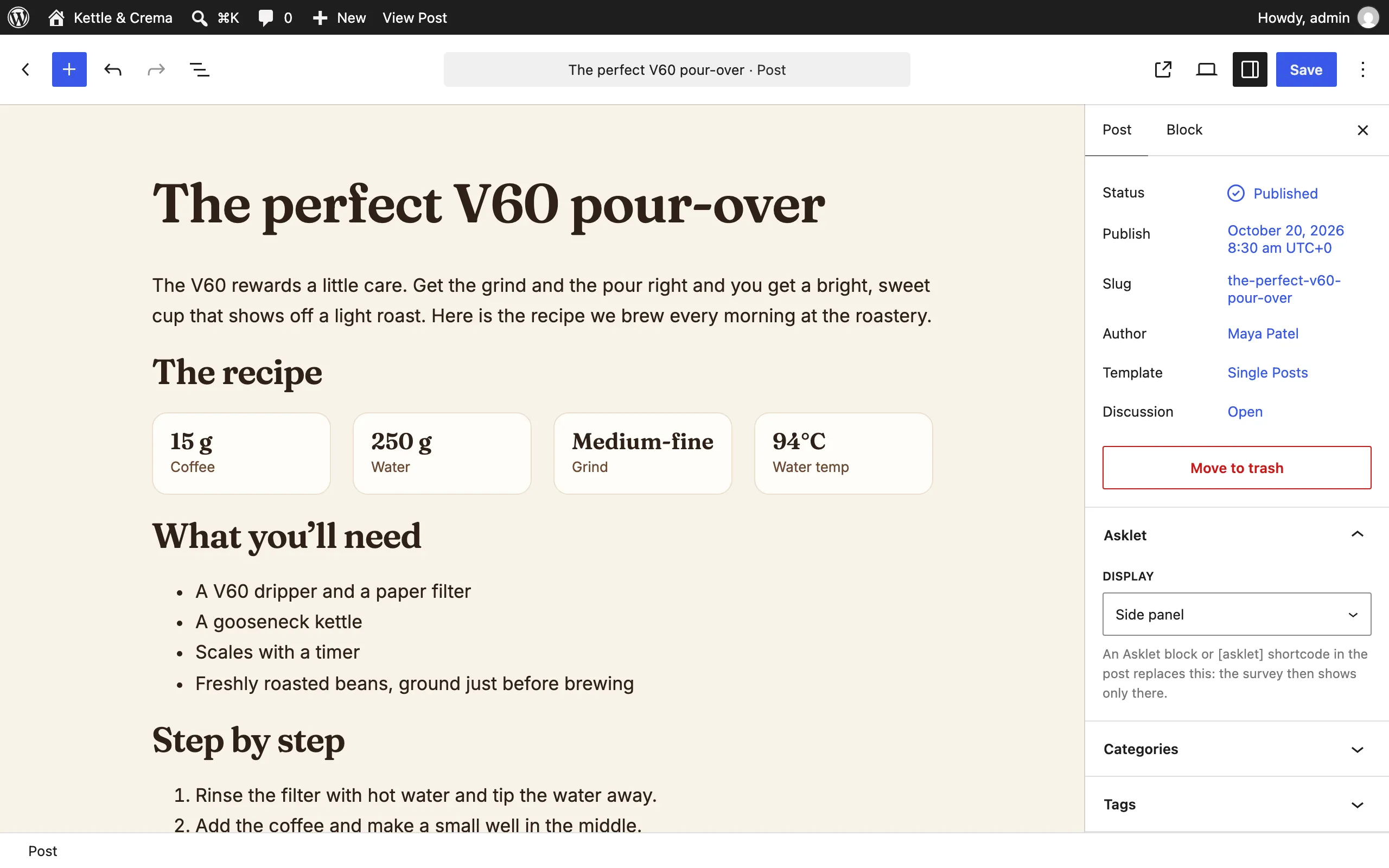
Each post and page has an Asklet panel in the editor sidebar (a box beside the post in the classic editor). Pick the site default, inline, side panel, slide-in, or hide the survey on that post.
It works on post types you didn't tick under Show on too, so you can add a side panel to a single landing page.
Place it yourself, at any size
Add the Asklet survey block where the survey should go, or the [asklet] shortcode in the classic editor, a widget area or a page builder. A post with the block or shortcode never gets a second, automatic survey.
By default the survey fits its questions and the width of your content column. Settings → Asklet → Size sets a fixed height and a maximum width for the whole site, and one block or shortcode can set its own:
[asklet height="400" width="600" align="left"]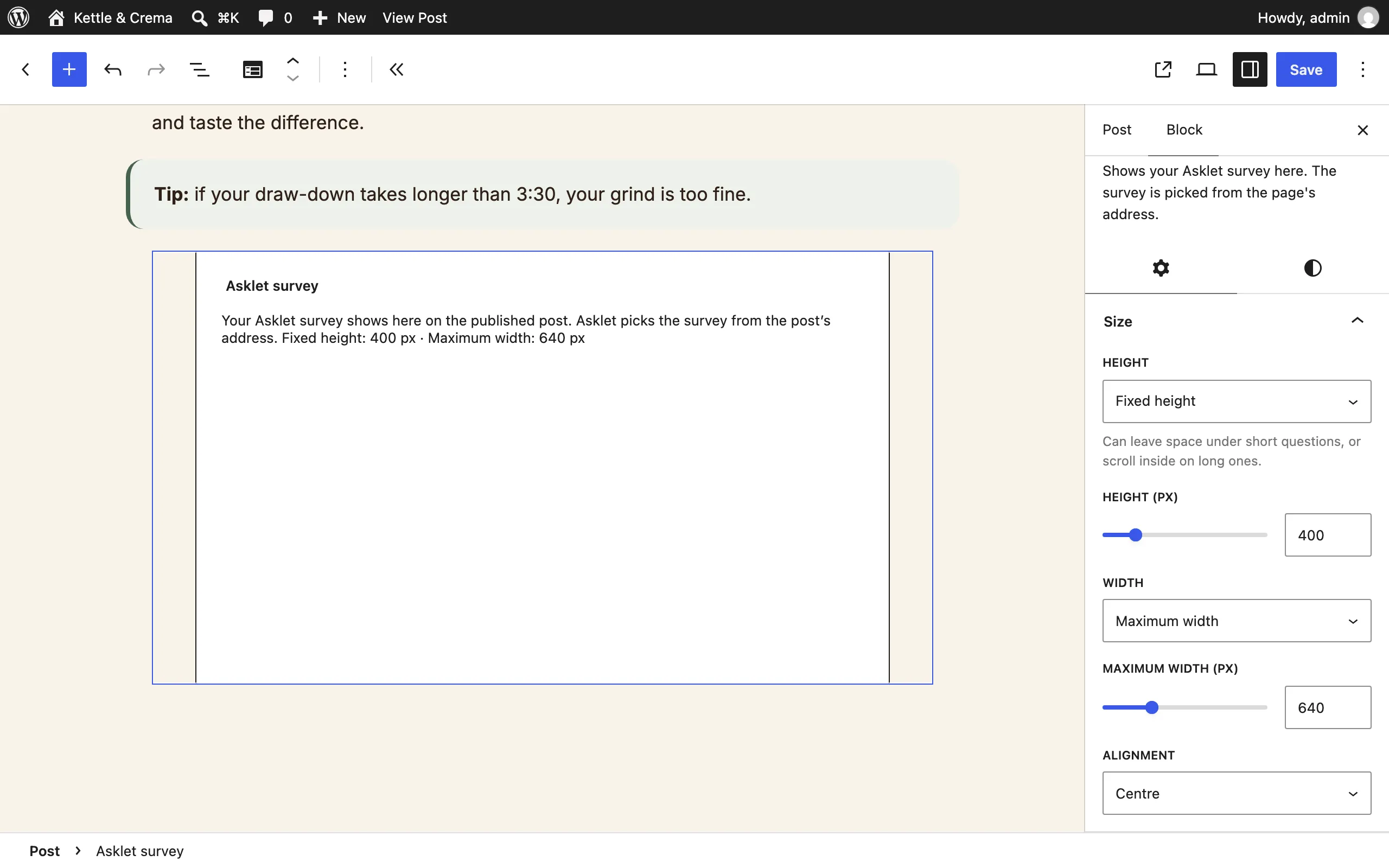
Show the right survey on each kind of post
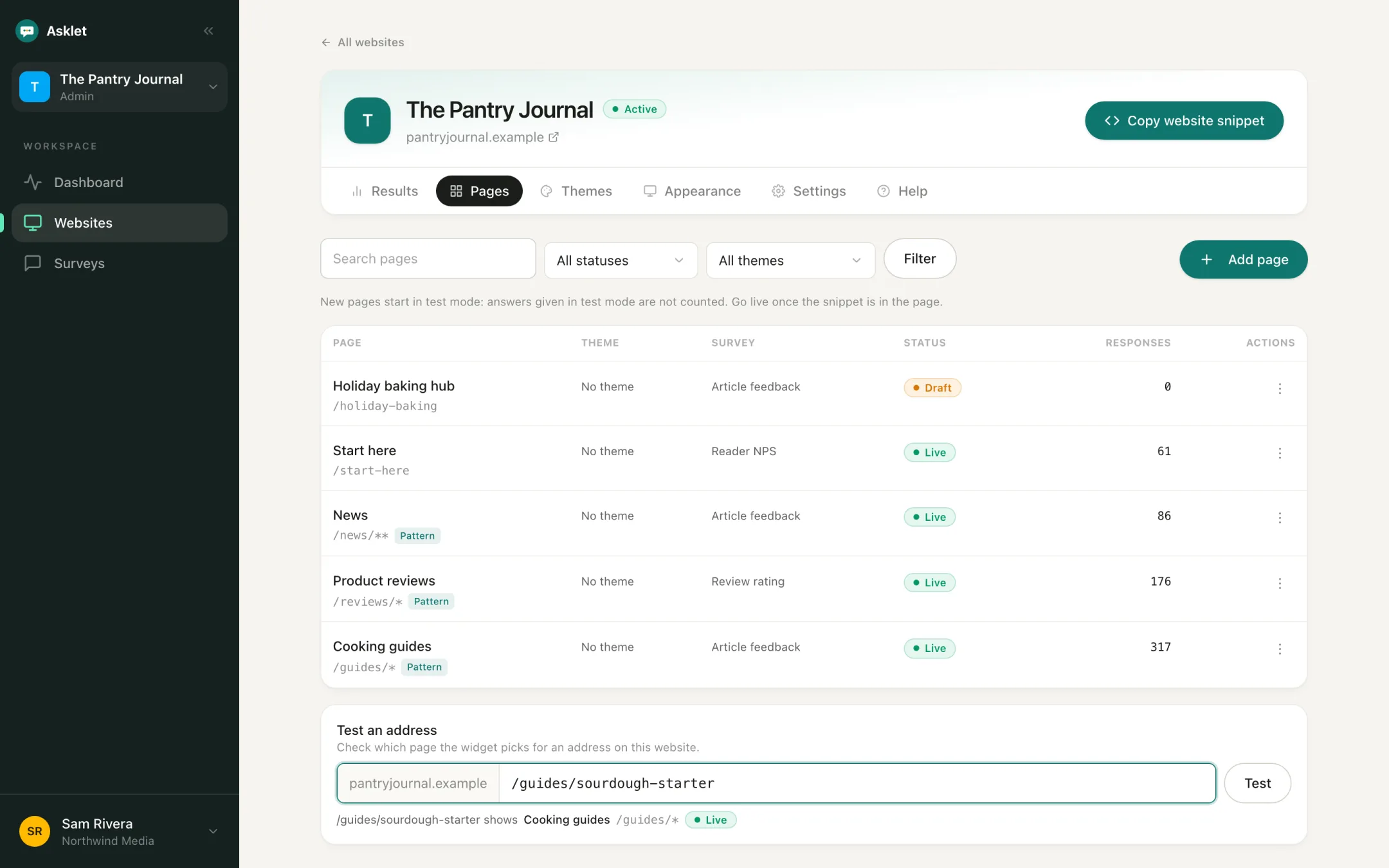
Pages and path patterns in Asklet decide which survey a post shows. How you set them up depends on your permalink structure, under Settings → Permalinks. Trailing slashes don't matter: /news/my-story/ matches /news/*.
- Category in the address (/%category%/%postname%/): add one pattern per section, such as /news/*, /interviews/* or /guides/*, each with its own survey.
- Post name only (/%postname%/): posts sit at the top level next to your pages, so let the website's default survey cover every post and add exact paths for the posts that need other questions.
- Dates in the address (/%year%/%monthnum%/%postname%/): the default survey covers every post, and a pattern such as /2026/** covers one year's posts.
Without the plugin
If you can't install plugins, add the snippet by hand. Keep referrerpolicy="unsafe-url" on the iframe - Asklet uses it to know which page the reader is on, so the right survey appears.
To try it on one post, add a Custom HTML block where the survey should appear and paste the snippet. For every post, with a block theme go to Appearance → Editor → Templates → Single Posts and add a Custom HTML block below the post content; with a classic theme, paste the snippet after the_content() in your single-post template, ideally in a child theme.
WordPress removes iframes from posts saved by Authors and Contributors (users without the unfiltered_html capability), so the template is the safer place. The plugin has no such limit.
<iframe src="https://asklet.io/embed/s/<your-site>" title="Article feedback" width="100%" height="480" loading="lazy" referrerpolicy="unsafe-url" style="border:0"></iframe>Troubleshooting
The survey doesn't appear
Check that Settings → Asklet has a site key (Tools → Site Health warns you when it's missing), that the post type is ticked under Show on, and that the post's own Asklet display isn't set to hidden. Then clear your page cache.
The widget shows an empty box
Check the address bar: the domain must be the website's root domain or one of the subdomains you listed in Asklet, including www. Then check that the website and its default survey are active.
Every post shows the default survey
View the page source of a published post and check that the iframe still has referrerpolicy="unsafe-url". Some optimisation and lazy-loading plugins rewrite iframes. Then use Test an address on the Pages tab in Asklet to check which page the post's path matches.
The survey shows twice
The post still has a snippet you pasted by hand, in a Custom HTML block or the theme template. Remove it: the plugin adds the survey for you.
Nothing shows on a page built with a page builder
Some page builders don't output the post through WordPress's usual content filter, so inline surveys can't be added after it. Put the [asklet] shortcode in the builder's shortcode element, or use the side panel or slide-in, which don't depend on the content.
Changes don't appear on the live site
Caching plugins and CDNs keep serving the old HTML. Clear the page cache after you change the plugin settings.
Common questions
Is there an Asklet WordPress plugin?
Yes. It is in review for the WordPress.org directory. Until it is listed, the snippet does the same job: paste it into a Custom HTML block or your single-post template.
Is the plugin free?
Yes. The plugin is free and open source (GPL). You need an Asklet account to build surveys and read answers, and the Free plan is enough to start.
Will it slow down my WordPress site?
No. The survey is one iframe that loads when a reader scrolls near it, plus one small script (no jQuery) that sizes it to the questions. Pages without the survey load nothing, and the plugin adds no database tables.
Does it work for Authors and Contributors?
Yes. WordPress strips iframes that Authors and Contributors paste into posts, but the plugin outputs the survey itself, so it shows on their posts too, and they can add the Asklet block.
Where are the answers stored?
In Asklet, not in your WordPress database. You read them per website, per page and per path in the Asklet dashboard.
Do I need to add the widget to my cookie banner?
No. The widget sets no cookies and stores no identifiers, so there is nothing to consent to.
Related guides
Other platforms
All integrationsGet your first answers today.
Set-up takes a few minutes, and the free plan covers one website or app.
Start freeFree plan, no card needed.